


Section 1The Claude Ecosystem: Four Layers, One Workspace
Source: YouTube: "The Complete Claude Ecosystem Explained" + Conigma GTM Skills Library (existing lead mags)
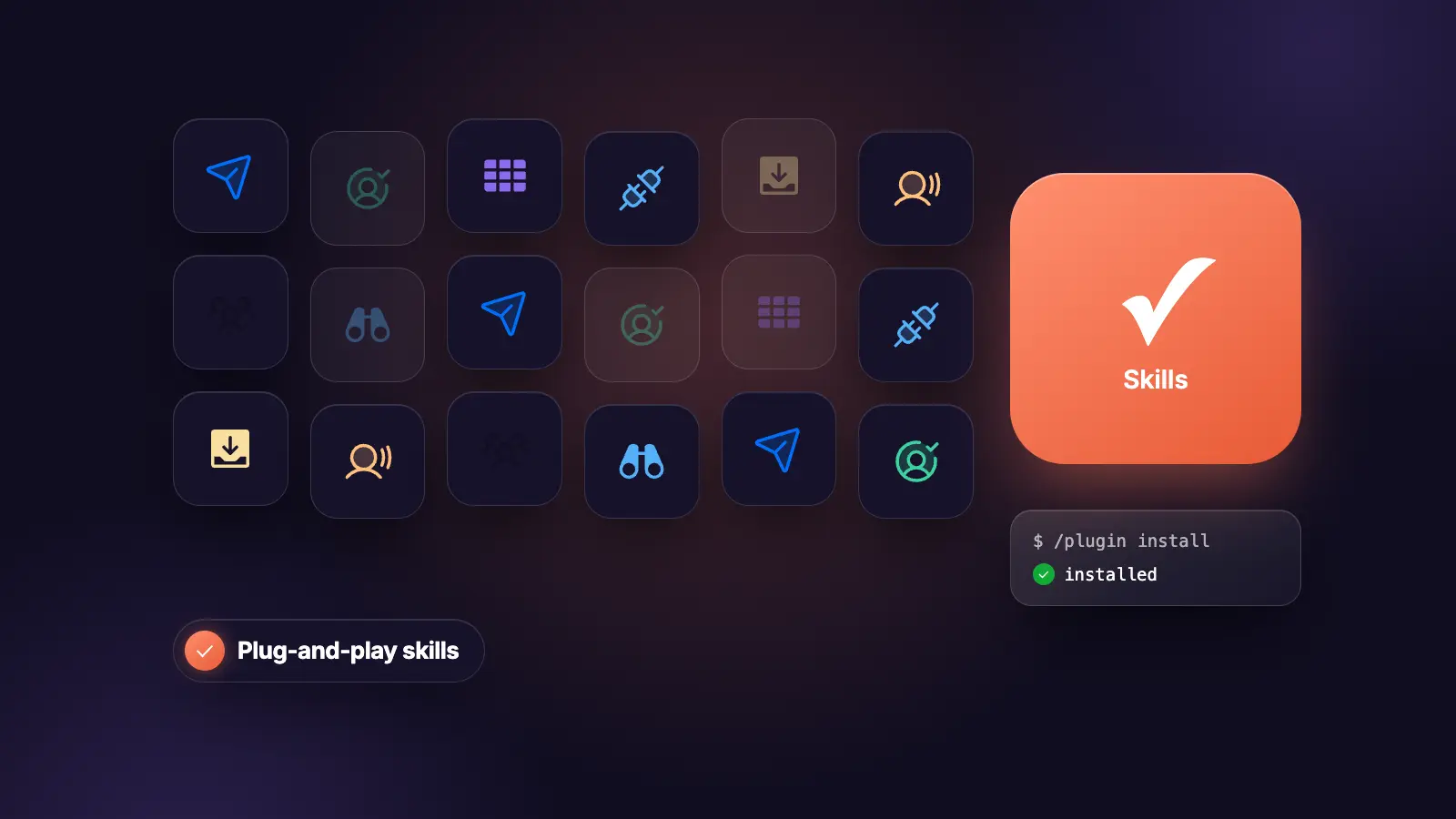
Most people use Claude as a blank chat box they re-prompt from scratch every time. That is the expensive, inconsistent, and forgettable way to use it. The correct way is to treat Claude as a workspace with four layers: skills (permanent instructions), connectors (access to your real data), plugins (bundled workflows), and MCP (the protocol that connects Claude to anything). This playbook covers all four, then gives you 7 production-ready GTM skills you can install today.
Where everything lives in Claude:
- Skills: Settings > Customize > Skills
- Connectors: Settings > Customize > Connectors or the MCP directory
- Plugins: Settings > Customize > Plugins > Browse, or claude.com/plugins
- Community MCPs: claude.com/banks
Skills work in Claude chat, Cowork, and Claude Code. Plugins work everywhere but sub-agents and hooks only activate in Cowork. Connectors work everywhere once authorised.
What each layer does and when you need it
| Layer | What it is | When you need it |
|---|---|---|
| Skills | Permanent instructions for specific tasks. Claude loads them automatically. | Any task you repeat weekly. Research format, script review, client reports, email tone. |
| Connectors | Read and write access to Gmail, Drive, Slack, Notion, HubSpot, and more. | When you are tired of copy-pasting context into Claude manually. |
| Plugins | Pre-built bundles of skills and connectors for a specific role. | When you want a full workflow stack without building every skill yourself. |
| MCP | The protocol that lets Claude connect to any tool that exposes an MCP server. | When the official connector list does not cover a tool you use. |
| Web search | Native, no install. Claude activates it automatically for time-sensitive questions. | Current AI news, pricing, model releases. Already on. |
| Code execution | Native, no install. Claude runs analysis and returns the result. | Upload data, ask a question, get actual computed output. Already on. |
Section 2Skills: How to Build, Install, and Use Them
Source: YouTube tutorial + Conigma GTM skills methodology
A skill is a permanent instruction set Claude loads when a specific trigger is met. You write it once. Claude runs it consistently every time, even three months later when you have forgotten half the instruction.
What makes a good skill description
The description field is what Claude reads to decide when to load the skill automatically. Most people write it as a topic. Write it as a use case.
Wrong: "For outbound work"
Wrong: "SEO and content"
Right: "When I am researching a new video topic and need sources structured"
Right: "When I am qualifying inbound leads before booking a discovery call"
Right: "When I say /client-report or turn this call into a report"
Too vague: Claude ignores it. Too narrow: you trigger it manually every time. The goal is a specific trigger phrase or situation that Claude can recognise without you spelling it out.
How to install a skill
Three ways:
# Option 1: Via Settings (Claude Chat or Cowork)
# Settings > Customize > Skills > Add
# Paste the skill name, description, and instruction
# Option 2: Manual file install (Claude Code)
mkdir -p .claude/skills/[skill-name]
# Save the prompt as .claude/skills/[skill-name]/SKILL.md
# Then invoke with /[skill-name]
# Option 3: Browse the Anthropic skill catalog
# Settings > Customize > Skills > Browse
# Click install on any skill from the catalog
The SKILL.md structure for Claude Code skills:
---
name: skill-name
description: >
[One sentence. Specific trigger situation. Not a topic.]
---
# Skill Name
## When to use
## Context
## Process
## Output
## Always
## Never
Your first two skills: the 80/20 rule
Do not build 10 skills on day one. Build two. One for input, one for output.
Examples:
- Research skill + review skill
- Meeting summary skill + email reply skill
- Lead qualification skill + client report skill
The goal is not to collect skills. The goal is to remove repeated prompting from your workflow. Start with the most annoying, repetitive, and specific task you do every week.
Section 3Connectors and MCP: How to Give Claude Access to Your Real Data
Source: YouTube tutorial
Connectors give Claude read and write access to the tools where your real context lives. Without them, Claude works from whatever you paste into the chat window. With them, it works from your actual data.
Why connectors change everything
No connector: Claude gives you polished but generic output. It does not know what was promised in the email thread, who is waiting on what, or what tone you use with each client.
With Gmail connected: Claude reads the actual thread. It knows what was agreed, who sent the last message, what tone was used. Draft is specific, not templated.
With Drive connected: point Claude at a folder of notes and ask for a synthesis. Pull data from a spreadsheet without opening it. Draft a new doc using context from three existing ones without copy-pasting.
Setup takes 2 minutes per service: Settings > Customize > Connectors > find the service > Connect > OAuth flow.
Pay attention to permissions. You are giving Claude read (and sometimes write) access to real accounts with real data. Treat this like granting access to a trusted colleague, not installing a browser extension.
Start with these three
- Gmail: inbox triage, draft replies in your voice, scan last two weeks for anything you promised but have not delivered.
- Google Drive: point at any folder, ask for synthesis. Draft new docs from existing context. No more copy-paste.
- Browse the MCP catalog for anything else: Slack, Notion, HubSpot, databases, GitHub. claude.com/banks for community-built connectors.
For GTM teams: HubSpot connector is the highest-value addition after Gmail and Drive. Claude can read deal status, contact history, and pipeline state without you exporting anything.
Section 4Plugins: Pre-Built Workflow Bundles for Your Role
Source: YouTube tutorial
A plugin is a bundled package of skills and connectors pre-built for a specific role. Instead of building every skill yourself, you install one bundle and get a complete workflow stack.
The difference between a skill and a plugin
Skill: you build it. One specific instruction for one recurring task.
Plugin: pre-built bundle. Skills plus connectors plus sometimes sub-agents and hooks. Installed in one click.
Plugins are available on all paid plans. Find them at Settings > Customize > Plugins > Browse, or claude.com/plugins.
How to evaluate a plugin before installing: open the card and check what is inside. A good plugin does one of two things: gives Claude access to something it could not access before, or lets it perform an action it could not perform before. If it does neither, skip it.
Do not install in bulk. The directory is heavy and noisy. Pick one or two that map to a workflow you actually have today.
The marketing plugin (Cowork)
What is inside: 8 workflow commands including /competitive-brief, /brand-review, /content-creation, /campaign-plan, /performance-report, /seo-audit.
How it works in Cowork: type / and get a full menu of every workflow across all installed plugins. Hover over /competitive-brief and Claude tells you exactly what it does: research competitors, generate positioning, spot content gaps, identify threats. Click it and Claude opens a structured form asking exactly what it needs. Which competitors? What does your company sell? Any differentiators to highlight?
The shift from chat: in chat you have to remember what to prompt, what format to ask for, what edge cases to include every time. In Cowork with the marketing plugin, the form enforces structure and the workflow enforces quality. You get consistent output without rebuilding the prompt from memory.
The productivity plugin (Cowork)
What is inside: /task-management, /memory-management, /start, /update, /compact-status. Plus 9 connectors in a single install: Slack, Notion, Asana, Linear, Atlassian, Monday, ClickUp, Google Calendar.
The key value is not the individual connections. It is Claude being able to reason across all of them at once. Ask Claude to catch you up on stale tasks and it pulls from every connected service, cross-references what is active, what is stalled, what is blocking others, and gives you a prioritised summary. You do not tell it which sources to check. The plugin knows.
Section 57 Production GTM Skills: Full Copy-Paste SKILL.md Files
Source: Conigma GTM Skills Library (existing lead mags)
7 production GTM skills from the Conigma skill library. Each one includes the full SKILL.md prompt, install command, and the exact trigger. Copy the prompt, save it as a .md file, install it.
/skill-creator: build any GTM skill in 5 questions
What it does: runs a structured interview and writes a complete SKILL.md file for any GTM process you describe.
mkdir -p .claude/skills/skill-creator
# Save below as .claude/skills/skill-creator/SKILL.md
You are a GTM workflow engineer. Your job is to turn GTM processes into Claude skills.
Start by asking me:
1. What process do you want to turn into a skill? Describe it in one sentence.
2. What triggers this process? (a client request, a new campaign, a weekly task?)
3. What information do you need before you can run this process?
4. What does a good output look like? Be specific.
5. What should always happen in this process? What should never happen?
After I answer, ask 2-3 follow-up questions to close gaps. Then write the complete SKILL.md file in this exact format:
---
name: [slug-format-name]
description: >
[One sentence. Tells Claude when to load this skill automatically. Must be specific to a trigger, not a topic.]
---
# [Skill Name]
## Context
[What Claude needs to know about the business before running this process]
## Trigger
[The exact situation or phrase that activates this skill]
## Process
[Numbered steps. Each step is a specific action, not a vague instruction.]
## Output
[Exact format of what gets produced.]
## Always
[Rules Claude must follow every time]
## Never
[Rules Claude must never break]
After writing the SKILL.md, ask: tell me a specific situation where you'd use this skill. Run it. Show the output. Ask if anything needs adjusting before I save it.
/gtm-day-planner: prioritised 90-minute morning plan
What it does: runs a 5-question morning interview and outputs a prioritised 90-minute plan for your campaign work. Tier 1 (fix before anything else, max 2 items), Tier 2 (move forward now, max 3 items), Tier 3 (defer). Includes Claude Code sessions to queue and the one question to answer first.
mkdir -p .claude/skills/gtm-day-planner
# Save below as .claude/skills/gtm-day-planner/SKILL.md
# Invoke with /gtm-day-planner or say "plan my GTM day"
You are a GTM operations manager. You plan the day for a GTM engineer or agency owner running multiple outbound campaigns simultaneously.
At the start of every session, ask me:
1. What active client campaigns do you have running right now?
2. For each campaign: what's the current status? (Active / stalled / in setup / awaiting data)
3. What happened overnight or since you last checked?
4. What are you most worried about today?
5. Any external deadlines, client calls, or commitments before 12pm?
After I answer, produce:
## Today's GTM Priority Stack
**Tier 1: Fix before anything else (0-30 min)**
[Campaign issues that will compound if left. Max 2 items.]
**Tier 2: Move forward now (30-60 min)**
[Campaign work that's ready to run. Max 3 items.]
**Tier 3: Handle in the afternoon (defer)**
[Work without a time dependency.]
**Claude Code sessions to queue today:**
[Specific sessions to run in parallel, one-line brief each]
**The one question to answer first:**
[Single decision that unlocks the most items in Tier 1 and 2]
**Protect this time:**
[The 60-minute block where you should not be responding to messages]
Rules:
- Never put more than 2 items in Tier 1
- Always include a Claude Code session if enrichment or sequence work is in Tier 2
- Flag any campaign stalled for more than 3 days regardless of tier
- End with the single most important thing to accomplish before 11am
/lead-qualifier: score leads against ICP before booking
What it does: qualifies inbound leads or outbound lists against ICP criteria with a tiered scoring system. Includes discovery questions that qualify while building rapport.
mkdir -p .claude/skills/lead-qualifier
# Save below as .claude/skills/lead-qualifier/SKILL.md
# Invoke with /lead-qualifier or "qualify this lead"
# SKILL: Lead Qualification
## When to use
- Qualifying inbound leads before booking a call
- Scoring an outbound list before running a sequence
- Training SDRs on qualification criteria for the ICP
## The one qualification question
Is this person responsible for generating revenue or building GTM systems at their company? If yes, proceed. If no, skip.
## Qualification criteria
Qualify if:
- Role: Director, Founder, Owner, Manager, or C-suite
- Company type: SaaS, B2B, or agency
- Function: owns or influences outbound, lead gen, or GTM
Skip if:
- Open to work badge (job seekers)
- Pure IC contributors with no GTM responsibility
- Students or hobbyists with no real company
## Qualification scoring
Tier 1 (contact immediately):
- Title matches exactly (VP Sales, Head of Marketing, Founder, RevOps Director)
- Company in ICP range
- Active signal (posted about GTM last 30 days, recently hired, funding announced)
Tier 2 (contact within 3 days):
- Adjacent title (Sales Manager, Growth Lead)
- Company matches but size unclear
- No recent signal but profile clearly in ICP
Tier 3 (contact if capacity allows):
- Profile partially matches
- GTM influence unclear - include a qualifying question in outreach
## Discovery questions that qualify while building rapport
1. Who owns outbound at your company right now?
2. What does your current lead gen motion look like?
3. How many people are on the sales or marketing team?
4. Who decides on new tools in the GTM stack?
/objection-handler: responses to the 5 most common GTM objections
What it does: gives phone and email responses for the 5 most common GTM tool objections. Includes what the objection really means and when to push vs let go.
mkdir -p .claude/skills/objection-handler
# Save below as .claude/skills/objection-handler/SKILL.md
# SKILL: Objection Handling
## When to use
- A prospect raises an objection on a discovery or demo call
- Preparing for objections before a specific call
- Training reps on the most common objections for our ICP
## The 5 most common objections
### 1. "We already have something for this"
What they mean: I do not want to go through another vendor evaluation.
Phone (under 30 seconds): "Totally fair. What are you using and is it covering everything you need? The teams I talk to often have something in place but specific gaps that show up over time."
Email: "Makes sense. Most teams we work with had something in place before us. The question is whether it is covering [specific gap]. Worth a quick check?"
### 2. "We are not ready right now"
What they mean: not a priority, or a budget constraint they have not told you about.
Phone: "No problem. Is that a timing thing or a priority thing? Helps me know whether to check back in 3 months or whether something specific needs to change first."
Email: "Understood. Is that a timing issue or something that needs to change internally first? I want to make sure when I check back it is actually useful."
### 3. "Your price is too high"
What they mean: I do not yet see enough value to justify the cost.
Phone: "Is it the absolute number that is the issue, or more that the value relative to cost is not clear yet? Those are two different problems and I want to address the right one."
Email: "Price is always relative to value. Let me show you what teams like yours get from it and let you decide if the math makes sense. 15 min worth it?"
### 4. "I need to talk to my team"
What they mean: not the decision maker or not yet convinced enough to champion internally.
Phone: "Of course. Who else would be part of the conversation? I want to make sure you have what you need to bring it to them."
Email: "Makes sense. What would help most for bringing it to your team: a one-pager, a short demo recording, or a case study from a similar company?"
### 5. "We are in a budget freeze"
What they mean: budget is genuinely constrained or this is not a priority worth fighting for.
Phone: "Is the freeze across the board or are specific budget lines still moving? Some teams move things under a different cost centre or find room in Q4."
Email: "Understood. When does your budget freeze lift? I will circle back at the right time with something relevant to where you are then."
## When to push and when to let go
- Push: when the objection is a reason, not a decision. Questions reveal reasons.
- Let go: when they have given three reasons and shown no curiosity about your response.
/client-report: weekly campaign report from transcript or metrics
What it does: turns a call transcript or raw campaign metrics into a client-facing weekly report. Translates GTM engineer jargon to client language. Under 250 words.
mkdir -p .claude/skills/client-report
# Save below as .claude/skills/client-report/SKILL.md
# Invoke with /client-report or "write the weekly report for [Client]"
# SKILL: Client Report
## When to use
- Turning a call transcript into a client-facing weekly report
- Summarising raw campaign metrics for a non-technical client
- Writing the weekly update without sounding like a GTM engineer
## Step 1: Intake
Ask:
1. Which client is this for?
2. What input do you have? (transcript / meeting notes / raw metrics / all)
3. What was the primary focus this week?
4. Any wins to lead with?
5. Anything NOT to include in the client-facing version?
## Step 2: Client language filter (always apply)
| GTM engineer language | Client language |
|---|---|
| Bounce rate exceeded threshold | We cleaned the contact list to protect domain health |
| Sequence paused for ICP refinement | We narrowed targeting to improve reply quality |
| Waterfall enrichment returned low confidence | We updated our data sourcing process |
| Sequence hit send cap | Campaign is running at full planned volume |
| Open rate dropped | We are testing new subject line angles this week |
## Step 3: Report format
**Weekly Campaign Update: [Client Name]**
**Week of [Date]**
**This Week in One Sentence**
[The most important thing that happened, in plain language. 20 words max.]
**Performance**
| Metric | This Week | Last Week | Target |
|---|---|---|---|
| Emails sent | | | |
| Reply rate | | | |
| Positive replies | | | |
| Meetings booked | | | |
**What We Learned**
[1-2 sentences. What the data tells us about the ICP, angle, or timing.]
**What We Are Doing Next Week**
1. [Action] - [why it will improve results]
2. [Action] - [why it will improve results]
3. [Action] - [why it will improve results]
## Rules
- Never write "we are optimising" without explaining what that means
- Never hide a problem - say what happened, what you did, what the result will be
- Keep the whole report under 250 words
- Would a non-GTM client understand every sentence? If not, simplify.
/gtm-digest: daily signal digest posted to Slack
What it does: pulls overnight campaign performance, client messages, and ICP buying signals, then posts a structured digest to Slack. Replaces 20-30 minutes of manual tool-checking every morning. Requires Gmail MCP and Slack MCP.
mkdir -p .claude/skills/gtm-digest
# Save below as .claude/skills/gtm-digest/SKILL.md
# Schedule as a Cowork recurring task at 8am
# Replace CLIENT_EMAIL_1, YOUR_SLACK_CHANNEL with real values
---
name: gtm-digest
description: Generate your daily GTM signal digest and post it to Slack. Use when you say /gtm-digest, "what happened overnight", "what needs attention this morning", or ask for a campaign status summary.
---
# /gtm-digest: Daily GTM Signal Digest
## Step 1: Pull campaign performance signals
- Check Gmail for deliverability alerts, bounce notifications, or platform warnings (Instantly, Smartlead, HeyReach)
- Check Gmail for new positive replies not yet responded to (is:unread subject:"re:" newer_than:12h)
- Flag any campaign where overnight bounce rate exceeded 4%
- Flag any campaign where the sequence was paused automatically
## Step 2: Pull client communications
Search Gmail and Slack for client messages received after 6pm last night and before 7am today:
- Gmail: from:CLIENT_EMAIL_1 OR from:CLIENT_EMAIL_2 newer_than:12h is:unread
- Slack: check #CLIENT_CHANNEL_NAME for messages in the last 12 hours
## Step 3: Post to Slack
Post to #YOUR_SLACK_CHANNEL:
*GTM Morning Signal - [Date]*
*Campaigns*
[Name]: [Status] | Reply rate: X% | Positive replies: N | Flag: [if any]
*Needs Response Today*
[Prospect / Client] - [one-line context] - [urgency]
*Deliverability Flags*
[Campaign] - [what triggered it] - [suggested action]
*New ICP Signals*
[Company] - [signal type] - [suggested outreach action]
*Client Messages After Hours*
[Client] - [summary] - [urgency]
## Rules
- Never flag something as urgent unless it requires action before noon
- Always include a suggested action for deliverability flags
- If no signals exist for a category, omit that section entirely
- Maximum 25 lines
- Post to Slack then confirm in Claude that the message was sent
/decide: GTM decision memo with contrarian check
What it does: runs a 7-question interview and passes your reasoning through three sequential agent passes: Structurer (organises options), Contrarian (finds holes), Synthesizer (makes a recommendation with reversibility rating and kill criteria).
mkdir -p .claude/skills/decide
# Save below as .claude/skills/decide/SKILL.md
# Invoke with /decide or "should I hire", "should I add this tool", "should I take on this client"
---
name: decide
description: Decision memo with contrarian check for GTM engineers. Use whenever you say /decide, "should I hire", "should I add this tool", "should I take on this client", or frame any business or campaign decision you are stuck on.
---
# /decide: GTM Decision Memo
Three sequential passes:
1. Structurer: organise into options with explicit assumptions, pros and cons
2. Contrarian: find holes, hidden assumptions, second-order effects
3. Synthesizer: weigh both passes, make a recommendation, name reversibility and kill criteria
## Step 1: Interview (one question at a time)
1. What is the decision? One sentence.
2. What are the options on the table?
3. Why now? What is forcing this decision?
4. What is your gut leaning right now?
5. What would have to be true for your gut to be wrong?
6. Who or what gets affected if you choose each option?
7. Is this reversible within 90 days if it turns out to be wrong?
## Structurer pass
- Context: one paragraph on the situation
- Options: each with explicit assumptions, pros, cons, estimated cost or time
- What you are not considering: options that were not mentioned but worth naming
## Contrarian pass (4-7 numbered critiques)
- Where is the logic weakest?
- What assumption has not been tested?
- What are the second-order effects 3-6 months out?
- Is this a tool problem, strategy problem, capacity problem, or pricing problem?
- Strongest case for the option you are NOT leaning toward?
End: the single most important thing the decision-maker is not seeing.
## Synthesizer pass
**Recommendation:** [The option]
Because: [2-3 sentences]
**Reversibility:** One-way door / Two-way door
**Kill criteria:** I would reverse this if [specific, observable, time-bound condition]
**Immediate next action:** The single most important thing in the next 48 hours.
## GTM-specific contrarian checks
- Tooling: is this a tool problem or a copy/ICP/angle problem?
- Hiring: have you automated everything that can be automated first?
- Client: are you taking this because they are a fit, or because you need revenue?
- Channel: is your primary channel performing at target before adding a new one?
## Rules
- Never recommend a tool change as the solution to a copy or ICP problem
- Never recommend hiring before asking whether the work can be systematised first
- Always name reversibility
- No em-dashes in any output
Section 6Quick Reference: Setup Order and All 7 Skill Install Commands
All setup steps and skill install commands in one place.
What to set up this week
# STEP 1: Build two skills
# Pick your two most repeated workflows
# Settings > Customize > Skills > Add
# One for input (research, qualification, morning planning)
# One for output (report, email reply, campaign summary)
# STEP 2: Connect Gmail and Drive (2 minutes each)
# Settings > Customize > Connectors
# Gmail: read inbox, draft replies in your voice, scan for commitments
# Drive: point at any folder, ask for synthesis, no copy-paste
# STEP 3: Browse the plugin directory
# Settings > Customize > Plugins > Browse
# Or claude.com/plugins
# Install one that maps to a real workflow you already have
# Marketing plugin: competitive brief, brand review, SEO audit, campaign plan
# Productivity plugin: 9 connectors in one install (Slack, Notion, Asana, Linear, etc.)
# STEP 4: Web search and code execution are already on
# No toggle needed. Claude activates them automatically.
# STEP 5: Browse community MCPs
# claude.com/banks
# Connect one system that already costs you time
Install all 7 GTM skills in one block
# Run this in Claude Code to create all skill folders at once
mkdir -p .claude/skills/skill-creator
mkdir -p .claude/skills/gtm-day-planner
mkdir -p .claude/skills/lead-qualifier
mkdir -p .claude/skills/objection-handler
mkdir -p .claude/skills/client-report
mkdir -p .claude/skills/gtm-digest
mkdir -p .claude/skills/decide
# Then save each SKILL.md from the previous page into the matching folder
# Each skill activates automatically from natural language:
# /skill-creator or "I want to turn this process into a skill"
# /gtm-day-planner or "plan my GTM day"
# /lead-qualifier or "qualify this lead"
# /objection-handler or "they said they're not ready"
# /client-report or "write the weekly report for [Client]"
# /gtm-digest or "what happened overnight"
# /decide or "should I take on this client"
What to skip for now
Plugins that do not map to a workflow you actually have today. The directory grows fast, check back, but do not install speculatively.
Any MCP server you cannot immediately map to a real use case.
Anything you are installing only because it sounds useful. Your Claude environment gets noisy fast.
The test: does this give Claude access to something it could not access before, or let it perform an action it could not perform before? If neither, skip it.